

Can I put Kinoku on my home screen?
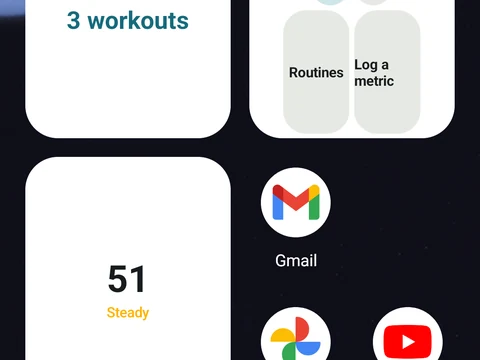
Yes. Kinoku has five free home screen widgets and a Quick Settings tile. Add them from Settings or by long-pressing your home screen.
Yes. You can add widgets from Kinoku’s Settings, under Widgets & shortcuts, or the usual Android way: long-press an empty spot on your home screen, pick Widgets, and find Kinoku in the list. All five widgets are free, but a few of their options need Pro.
- Today shows your Kinoku Score, the plan for today and your streak.
- Progress keeps one signal of your choice in view, such as your steps or how far along a Journey road you are.
- Quick Start gives you buttons for the routines and actions you pick for it.
- Kinoku Rings draws your score, today’s steps and this week’s workouts as rings.
- Muscle Map shows the muscles you trained in the last 7 days, and with Pro it also colors them by how rested they are.
Besides the widgets, there is a Quick Settings tile you can add to your phone’s pull-down panel. From any screen, a tap on it opens Kinoku straight into a new workout, or back into the one already in progress.
In the app
Widgets & Shortcuts
Five Android widgets for the home screen: today's next move, one progress signal, quick actions, your score and goals as three rings, and the muscles you trained in the last 7 days. The core is free; Pro adds the deeper views and Quick Log.