

Change History
See when a workout, routine, metric, setting, import, or other saved record changed, with readable before-and-after values.
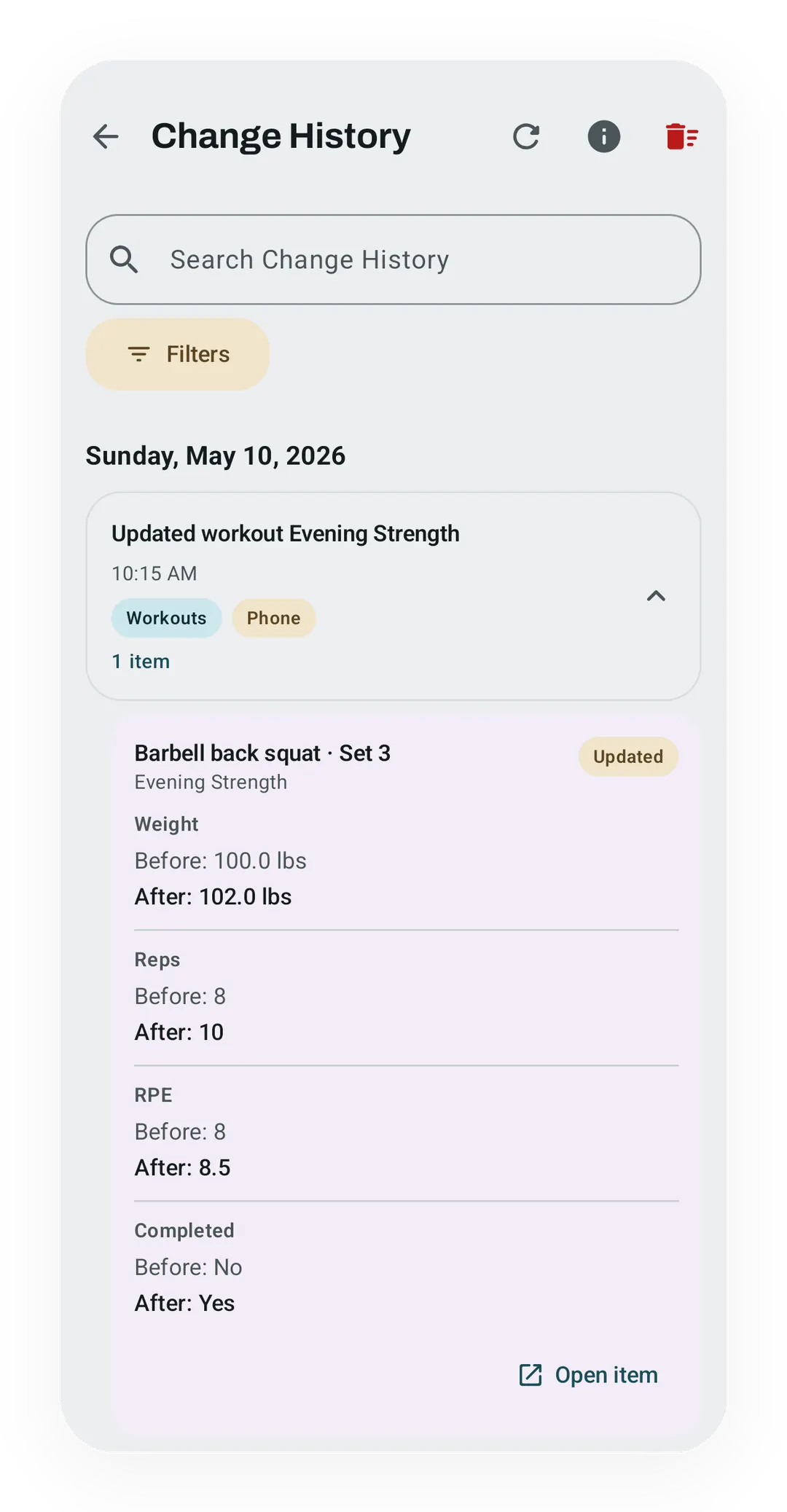
Real app capture
What this feature looks like with data
Open full-size image ↗One set, every changed field
A real Change History entry keeps the workout name and shows the saved weight, reps, RPE, and completion changes in the units used at the time.
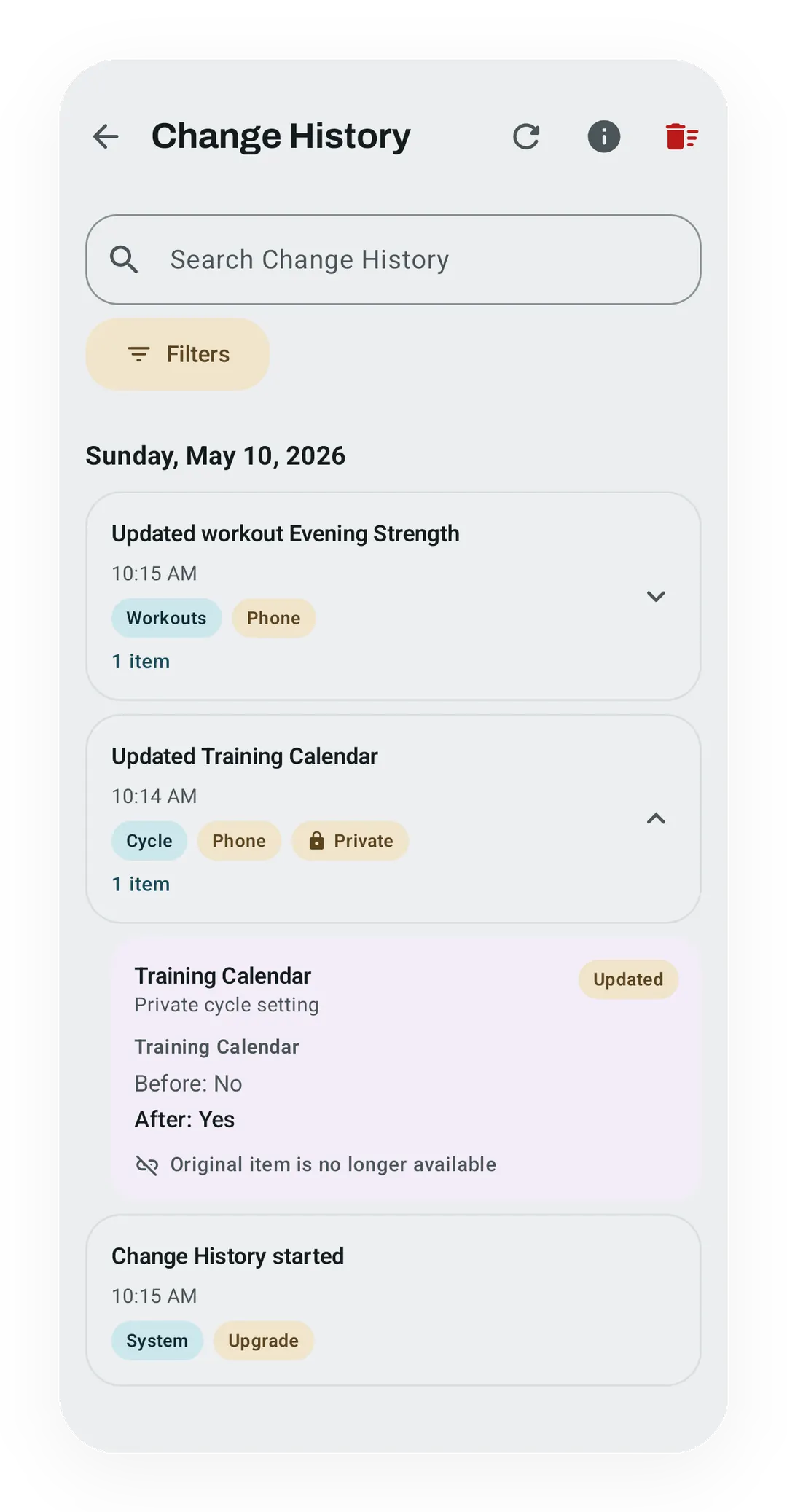 Open full-size image ↗
Private history stays private
A neutral cycle display setting appears in the same readable screen, while its details stay in the separate cycle database and outside normal exports.
Change History is a plain record of every change you saved to your own data in Kinoku, with field names and before-and-after values. A training log shows what is true now, which works until a squat set reads 102 pounds and you doubt it always did. The squat set is the example here, because it raises the three questions the screen answers: was the weight edited, when, and who added it?
Open Settings → Data & Storage → Change History, or reach the screen through Kinoku’s global search.
One action, one readable record
Each saved action becomes one entry, so a set edit that changes weight, reps, rate of perceived exertion (RPE), and the done state keeps those fields together. A routine move can hold every item it touched, while a big import stays one action whose items load on open.
Each entry shows when it happened, the part of Kinoku it came from, and often its source and item count. Sources include the phone, Wear, shortcuts, voice input, imports, and picks you accept, while search and filters help.
Open an item for plain field names and old and new values, formatted for weights, distances, dates, times, choices, and yes-or-no fields. Each entry keeps the unit you used at the time, so the 102-pound squat set stays in pounds after you switch the app to kilos.
History is not undo
The list is read-only, so it tells you what happened without being an undo tool or a backup restore. If the 102 pounds is wrong, the fix is a new edit on the screen that owns the set, and that edit becomes the next entry. Trash & 30-day Undo brings back a supported item, and Backup & Import covers the copy you can move.
An old entry stays clear after its item is deleted for good, because the name and changes stay while the link turns off.
What Change History records
The list follows saved changes to data you own:
- Workouts and sets, routines, and your own exercises.
- Plans, programs, intervals, and challenges.
- Metrics, photo details, scenes, plates, shoes, goals, and notes.
- Profile fields and app settings.
Key data actions are named too: an import, Undo Import, Trash, restore, empty Trash, and backup restore. A long import shows whether it finished, was partly done, or was cut short.
Only a saved change can appear, so a save that alters nothing makes no entry. The data change and its entry are written as one step, so a failed entry rolls the change back, which rules out a saved edit with no record.
What it deliberately leaves out
The list follows your actions rather than every task the app runs, so it leaves out:
- Background stats and GPS points.
- Health Connect data and step samples.
- Caches, awards, and rebuilt records.
- Background hints and app care work.
Secret data stays out as well. A change never stores photo files or file paths, and never stores login details, access keys, or API keys. Text that looks like a secret or a device path is hidden in the copy.
History starts when the feature reaches your phone, which is the one limit worth stating here. After the upgrade Kinoku adds one Change History started mark, and it never guesses at edits from older builds, so a set changed before it has no entry.
Private cycle history stays separate
Cycle, symptom, pregnancy, and private cycle settings use a second history, which lives in Kinoku’s private cycle database. The app joins both lists in memory when you open the screen, and no private value reaches the main training database.
The private list stays out of Android cloud backup and out of the normal data export. Android may carry it in a device-to-device transfer you start, and it can sit in a hand-made Kinoku backup or the separate cycle export.
Turning cycle tracking off keeps this record, while Delete all cycle data removes it with the rest of your cycle and pregnancy data.
Backup, export, and clearing
The main list can travel with Android backup when that is on, and it sits inside a Kinoku backup you make. A normal export adds two plain CSV files, where an imported entry keeps its own ID, so importing the same file twice makes no copies. An import also writes no entries about the rows it brings in.
You can clear both lists from the screen after you confirm, and the clear is final. It does not delete the workouts, plans, metrics, or settings the list once described. If the app stops mid-clear, it can finish the same clear after you start it again.
Free for the whole record
Change History is part of Kinoku Free, because the story of your data belongs with the data rather than behind Pro. It works offline and is never kept on a Kinoku server. What is fixed is that every save from the start mark gets an entry, while the set of record types it follows can still grow.
Try it for yourself.
Available on Google Play. Core access starts on the free tier.
Get on Google PlayRelated surfaces
Lossless backup, open CSV and JSON import, Strava import, and a scoped Export for AI handoff.
Deleted workouts and progress photos go to Trash for 30 days. A restored workout rewinds your program max, resyncs Health Connect, and updates bet progress.
Search like Spotlight by typing a metric, exercise, routine, or session. You can also run commands like "switch to imperial" or "apply Cyber theme".
Full cycle, fertility, and pregnancy tracking, with phase context and training links. Dedicated raw records and generated cycle state are excluded from future Android automatic cloud backup, standard exports, share cards, and Kinoku servers. Your Cycle Tracking configuration lives in that same excluded database, while user-created metrics remain eligible for Android system backup in your Google account. A manual ZIP or user-initiated device transfer can carry the dedicated database.