

Can I export my workout data to another fitness app?
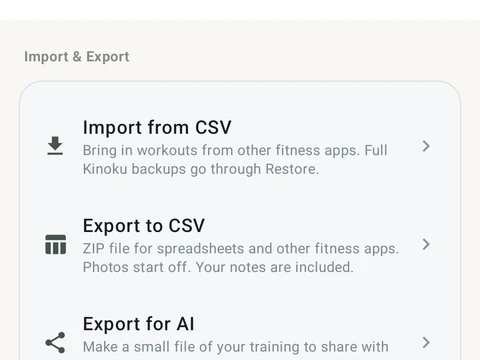
Yes. Export to CSV, under Settings and then Import & Export, saves a ZIP of plain CSV files that a spreadsheet can open and other apps may import.
Yes. Open Settings, then Import & Export, then Export to CSV. Kinoku saves a ZIP file with one CSV file for each kind of data. It covers your workouts and sets, exercises, routines, metrics, runs and routes, challenges, achievements, scenes, plates, settings and more, and your notes come along too.
CSV is a plain table format, so any spreadsheet app can open these files. Whether another fitness app can import them depends on that app and the columns it expects. Kinoku’s own importer reads them back.
Progress photo files stay out unless you turn on Include progress-photo files before you pick where to save. The option adds every photo, even the ones in Trash, so it suits a move to your own new phone better than sharing. The file holds your training history either way, which makes it worth keeping private.
Cycle Tracking records are left out of this export on purpose. Export cycle data, in the Cycle Tracking part of your Profile, makes a separate file for those.
In the app
Backup & Import
Lossless backup, open CSV and JSON import, Strava import, and a scoped Export for AI handoff.