

How do I hide or pause AI Coach tips?
Tap a tip card on the AI Coach screen to hide it for one exercise or everywhere, or to snooze it. Settings under Tips & coaching has the rest.
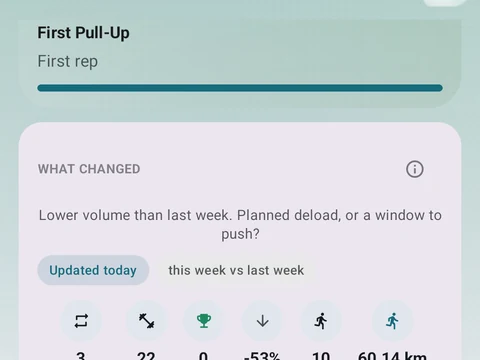
Coach tips show up as cards on the AI Coach screen, in the Top signals and Patterns detected sections, which come with Pro. Tap a card to open a sheet that says why the tip appeared, with the signal, the line it crossed, the time span and the data behind it. From that sheet you can pick Hide for this exercise, Hide this kind of tip everywhere, or Snooze for 7 days. Pause all tips opens a picker that quiets every tip at once.
Settings for all tips
Open Settings, then Tips & coaching, for wider control.
- Show workout tips is the main on and off switch.
- Snooze tips pauses all of them for 24 hours, 7 days, 30 days, or until you turn them back on.
- Categories lets you switch off whole groups, such as Strength, Recovery, Running or Cycle.
- Manage hidden tips lists each tip you hid, with a Restore button on each one.
- Restore everything clears every hide, ends any snooze, and turns all tips and groups back on.
If you close the same tip in Top signals three times within two weeks, Kinoku offers a quick way to hide it, so you do not have to keep closing it by hand. Hides you set on cycle tips are kept in Kinoku’s separate cycle database, which stays out of Android’s automatic backup to your Google account.
In the app
AI Coach
Coaching screens that run on your phone and explain what changed in your training and why it matters.