

How do I view my progress in Kinoku?
Open Stats from the bottom bar or the side menu. Its Overview, Exercises and Body Metrics tabs chart your training, and the Analysis tab is part of Pro.
Your charts live on the Stats screen. It is one of the default tabs in the bottom bar, and you can also reach it from Stats in the side menu. Swipe or tap between its four tabs.
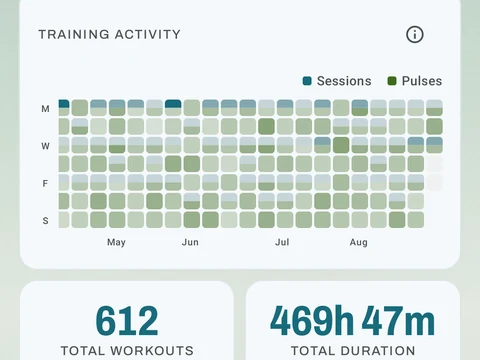
- Overview leads with a calendar of the days you trained, then your total workouts and time, how often you train each week, and which routines you use most.
- Exercises charts one exercise at a time. Pick an exercise, then pick what to chart, such as estimated one-rep max (1RM), heaviest weight, total volume or reps, and set the time range. A list of your past sessions sits under the chart.
- Body Metrics charts each daily metric you track in Kinoku, one metric at a time.
- Analysis charts your volume, sets and time, and filters them by routine or scene.
The Overview, Exercises and Body Metrics tabs are free. Analysis is a Pro tab, so on the free plan it shows a preview, except for the routine progress section you see when Stats is opened for one routine. Some extra sections on the other tabs, like comparing two exercises or links between your body metrics, are Pro too.
In the app
Stats & Progress
Charts per exercise, PRs, your best one-rep estimate, volume trends, and date filters. Every exercise type gets a chart that fits it: Best, Total, and Avg Time for holds, Best and Total Reps for rep work, and Best and Total Distance for distance work, not just weight charts.