

Move Workout History: FitNotes, Strong, Hevy & Strava
Step-by-step CSV and backup export guides for FitNotes, Strong, Hevy, Liftosaur, and Strava, plus which workout apps import your history without duplicates.
Kinoku in practice
Where this shows up in the app
 Open full-size image ↗
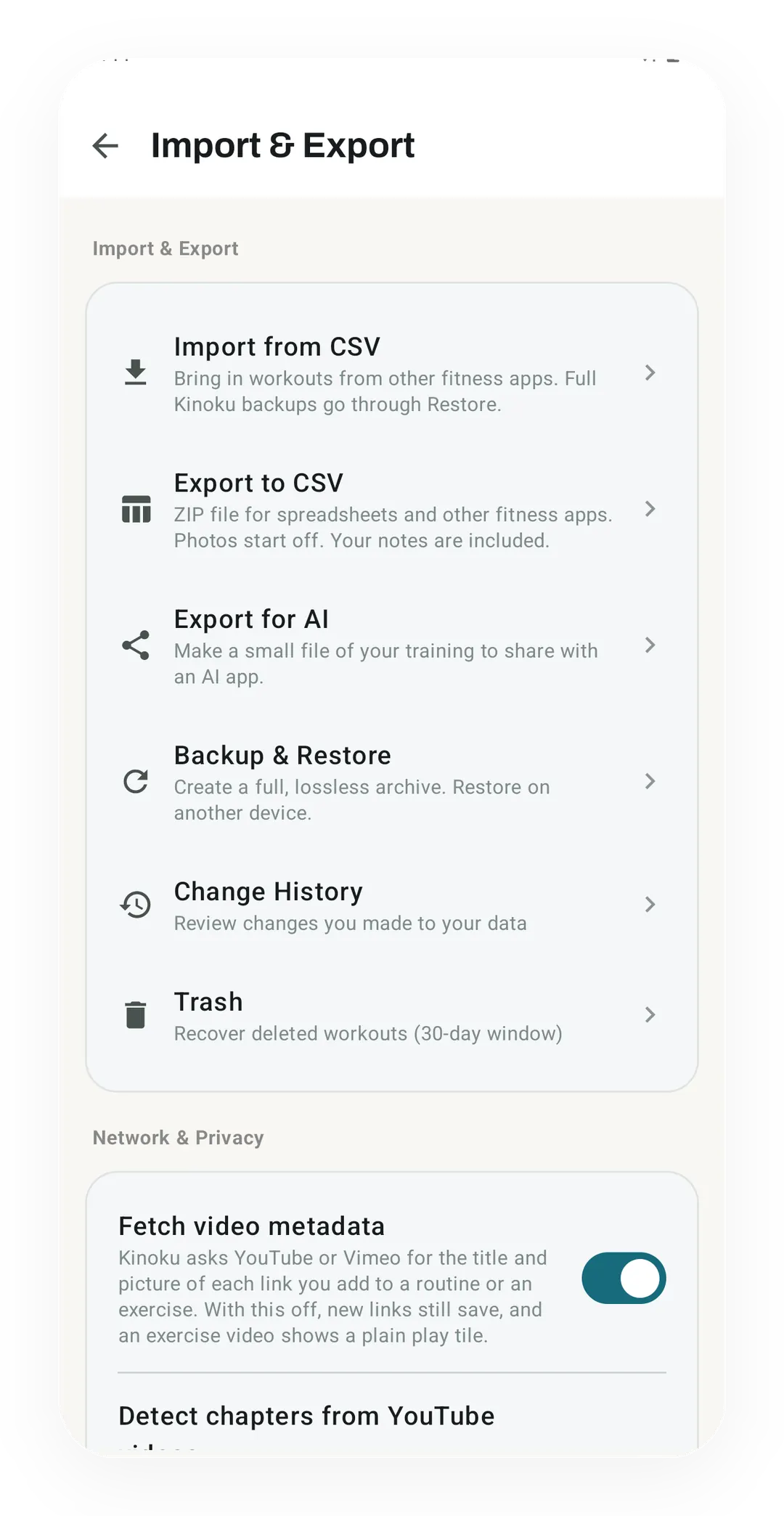
Kinoku's Import & Export screen
Real app capture. Import & Export holds Import from CSV, Export to CSV, Export for AI and Backup & Restore in one list.
Quickstart
Moving your workout history means exporting a file from the old app and importing it into the new one. Most gym apps export a CSV file, a plain table with one row per set, and many newer apps read the CSV files of Strong, Hevy or FitNotes. Plans, supersets and photos often stay behind, so a quick check after the import matters.
What moves between apps, and what stays behind
A workout app can hand you two kinds of file, and they do different jobs. A CSV (comma-separated values) file is a plain table that a spreadsheet or another app can read. A backup file is the app’s own complete copy, made to rebuild your history inside that same app on a new phone.
For a move between two different apps, the CSV is usually the file that travels. FitNotes says so directly on its settings page, which points you to its Backup option because a CSV file cannot be restored. Strong’s help centre says its exported files “cannot be imported back into Strong,” so a CSV is a one-way ticket out.
The sets themselves move well: the date, the exercise, the weight and the reps. Everything built around them moves less well. LiftJot’s import page lists what it leaves behind: “Routines, templates, profiles, measurements, and social data are not imported.” Hevy’s Strong import page says supersets do not carry over, though the exercises arrive in the right order.
Exporting from the app you are leaving
Each app below has its own path, and each step comes from the maker’s own help page unless the line says otherwise.
Strong
Strong’s help centre gives the Android path in two steps:
- Open the app’s Settings.
- Select Export Data.
You get “a spreadsheet friendly CSV format” file, and the same page notes that the file cannot be imported back into Strong.
Hevy
Hevy’s help articles on export refused our automated reads, so these steps come from our own test of Hevy 3.1.12 on an Android emulator in September 2026:
- Open your profile, then Settings.
- Choose Export & Import Data, then Export Data.
- Export your workouts as a CSV file.
The screen said the export covers your “entire workout/measurement history” and that the file cannot be imported back into Hevy.
FitNotes
FitNotes offers both files on its settings page:
- Tap the button on the Home Screen and select Settings.
- For a table, open the spreadsheet export and choose Save Export, or Share Export to send the file to cloud storage or email.
- For a copy to restore on a new phone, save a backup instead, which FitNotes names
FitNotes_Backup.fitnotes.
Liftosaur
Liftosaur puts its exports in one place:
- Go to Me and scroll to the Import / Export section.
- Tap Export history to CSV file for a table with one row per set.
- Tap Export data to JSON file for the full copy, which its page calls “the only export that you can load back into the app in full.”
Strava
Strava exports only from its website, and the full archive arrives by email:
- Log in on strava.com and open Settings, then the My Account tab.
- Under Download your account, select Get Started, then Request download.
- Wait for the email with the download link, which Strava says may take a few hours.
A single activity can also be exported from its own page as the original file or as a GPX track.
Google Fit and Samsung Health
Google Fit data leaves through Google Takeout, which builds an archive of what Google holds. Google’s help page says it “could take from a few minutes to a few days.” Samsung Health has a Download personal data option in its settings, and Samsung’s support page says the file lands in the Downloads folder of the My Files app. Neither help page names the file format, so it is worth opening what arrives before picking a destination.
Importing into the app you are moving to
Which file you need depends on where you are going. The table lists what each app’s own page says it reads.
| Moving to | Reads | What its page says stays behind |
|---|---|---|
| Hevy | A Strong CSV | Supersets |
| Liftosaur | A Hevy CSV, with undo | Not stated |
| LiftJot | Hevy and Strong CSVs, a FitNotes Android backup | Routines, templates, profiles, measurements, social data |
| Legend | Strong and Hevy exports | Rows that need a check stay visible for review |
| Strava | GPX, TCX and FIT activity files | Free accounts upload 15 files at a time |
| Kinoku | FitNotes, Strong, Hevy, JEFIT (a lifting app on iOS, Android, and the web), and Fitbod CSVs, Strava archives, and Kinoku CSV or JSON | See the limits below |
Strava’s file uploader takes “Any GPX, TCX, or FIT file with workout data”, which suits runs and rides more than gym sets. A gym log moves best into a gym app that names your old app’s file.
A worked example: two years of FitNotes sets
Take one lifter with two years of sets in FitNotes who wants to try another app. The path runs in three steps.
- Export. In FitNotes, Settings, then the spreadsheet export, then Save Export. The CSV holds every set with its date, exercise, weight and reps. The lifter also saves a FitNotes backup, so the old app can be restored if the move does not work out.
- Import. In the new app, the import screen takes the CSV. In Kinoku that is Settings, then Import & Export, then Import from CSV. LiftJot can take the FitNotes backup file itself.
- Check. Before anything saves, Kinoku’s Review Matches screen shows how each FitNotes exercise name matched an exercise in its library, flags close variations so an incline lift does not merge into a flat one, and remembers your custom exercise picks on future imports. A bench press variant named one way in FitNotes and another way in the new app is the usual surprise.
After the import, the lifter opens one familiar heavy session in the new app and compares it with the old one. If something looks wrong, Kinoku’s Import History undoes the whole batch, and the import can run again.
What can go wrong
Most problems come from three places, each one fixable after the import.
- Duplicates. Kinoku skips a workout it has seen before, so a new export from Hevy, Strong, FitNotes or Strava adds just the new ones. A full Kinoku backup can still give you two of each, and its preview says so when its workouts start in the same minute as yours. If that happens, Import History can undo the import.
- Exercise names. Two apps rarely name every exercise the same way. A review screen before the import catches most of these, and a quick look at one heavy day catches the rest.
- Units. Some exports write the weight in kilograms whatever the app showed you. Strong’s current CSV does this in a “Weight (kg)” column, which Kinoku reads from version 1.6 on. An older Kinoku brings those Strong sets in with reps and no weight.
Moving into Kinoku
Kinoku is a free Android tracker for lifts and runs with no account, and its import is part of the free plan. It reads FitNotes, Strong, Hevy, JEFIT, and Fitbod CSV exports, Strava activity archives, and its own published CSV and JSON format, which you can also write by hand or with an AI app. Until your first workout, Quick Start and Today offer to bring Hevy or FitNotes history in. If your history is on paper, the workout log template gives you a spreadsheet file with the column names Kinoku reads, plus a sheet to print for the sessions still to come.
Two limits belong here. Strong’s newest CSV needs Kinoku 1.6 or later to keep its weights, as described above. A Strava archive whose activities are FIT files, such as one synced from a Garmin watch, is not recognised yet, while archives with GPX or TCX tracks import. The CSV export comparison sets Kinoku’s own exports beside seven other apps, so leaving is as easy as arriving.
If you are leaving Runkeeper, Best Runkeeper alternatives gives its export steps and says which run apps read its GPX files.
Common questions
Which workout apps can import a FitNotes CSV?
Kinoku imports the FitNotes CSV file on the free plan, matching exercise names and reading the weight and distance units from their own columns. LiftJot reads the FitNotes backup file instead of the CSV. Both apps leave routines and templates behind, while keeping your dates, lifts, weights, and reps.
Can I import a Strong or Hevy CSV into another app?
Yes, Hevy, LiftJot, Legend, and Kinoku all read a Strong CSV export, and Liftosaur, LiftJot, Legend, and Kinoku read a Hevy CSV export. From version 1.6 on, Kinoku also reads Strong's newer Weight (kg) column so your weights come across with your reps.
Will importing my workout CSV twice create duplicate workouts?
In Kinoku, a second CSV import from FitNotes, Strong, Hevy, or Strava skips the workouts it has seen before and adds only new days. If an import looks wrong, Import History can undo the batch in one tap.
Do routines and supersets move over in a CSV export?
Usually not, because a workout CSV is a flat table with one row per set. Your dates, lifts, weights, and reps travel well, while saved routines, supersets, and photos stay in the old app. Checking one heavy workout right after the import is the fastest way to verify the result.
Track this in the app
Backup & Import
Lossless backup, open CSV and JSON import, Strava import, and a scoped Export for AI handoff.
Core tracking works offline, with no mandatory account.
Related features
Lossless backup, open CSV and JSON import, Strava import, and a scoped Export for AI handoff.
Bring your Strava history with no login token. Choose the Strava archive ZIP once; Kinoku reads activities.csv and supported route files from it on your phone. Kinoku never touches Strava's servers.
See saved edits as plain before-and-after changes, including imports and deleted targets. The history stays local, and private cycle changes stay in their own database.