

Choose how you log your sets
Compare Clean Inline, Compact Pills and Tabular Grid in Kinoku 1.4, plus the familiar FitNotes-style exercise screen. All core logging is free.
The same workout, four views.
Choose a view to take a closer look.
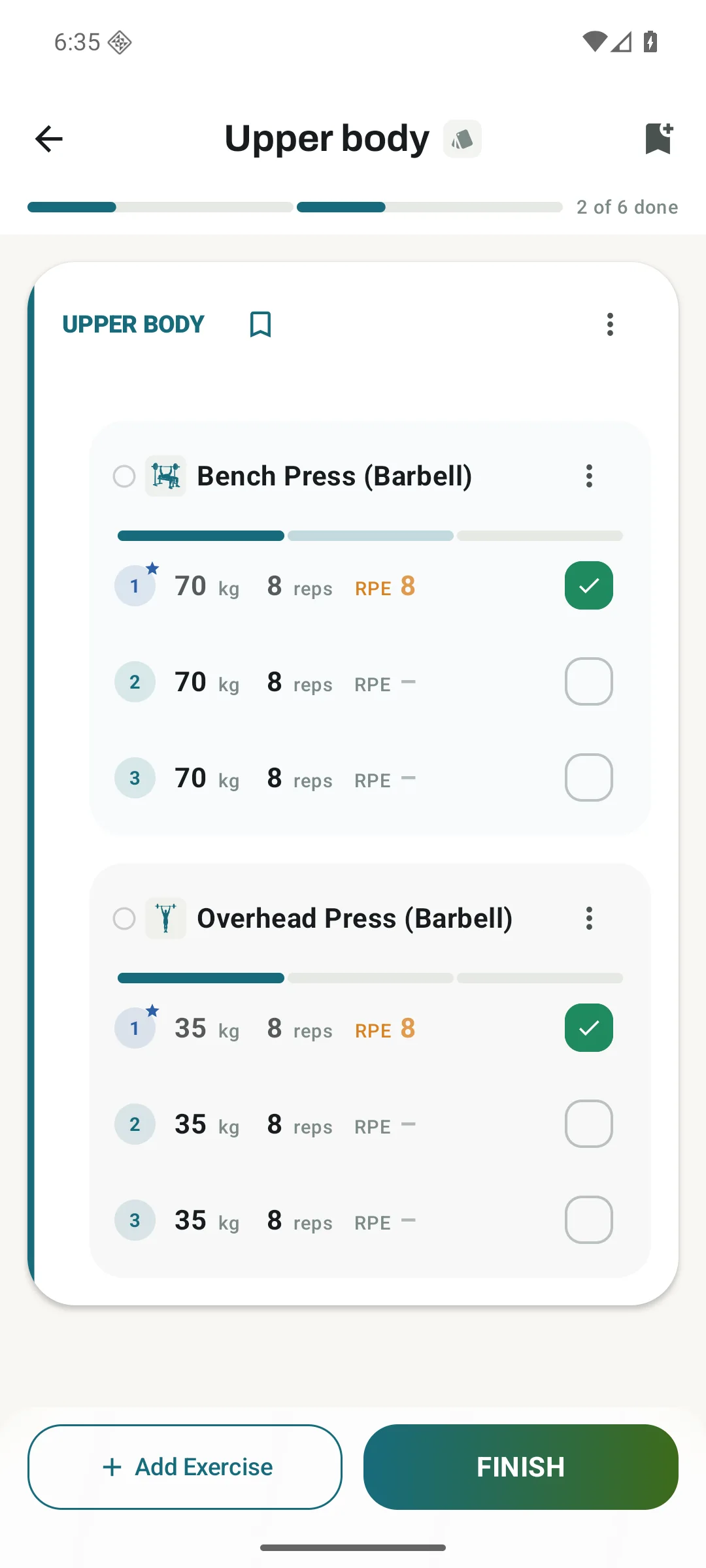
Clean Inline
Simple numbers with little around them. Tap a value to edit it in place.
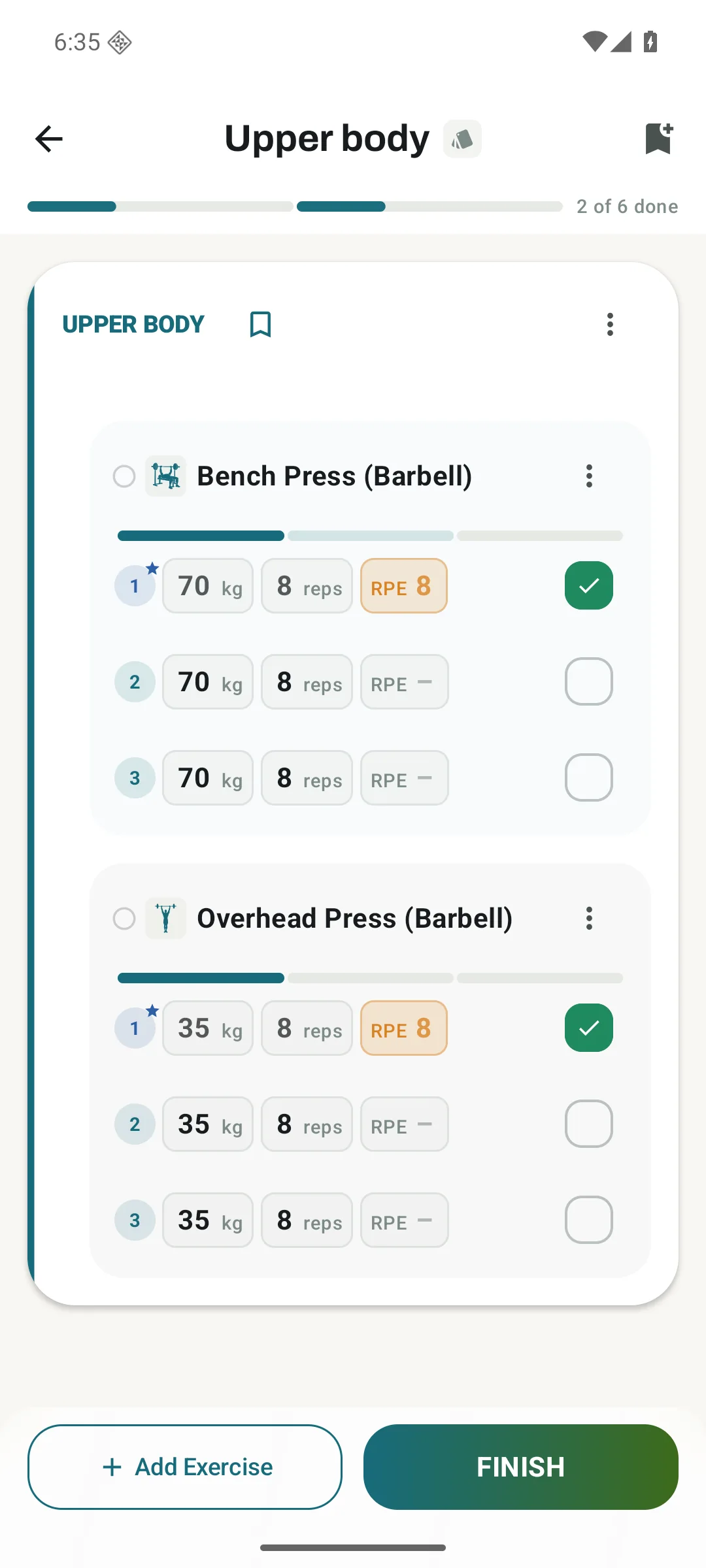
Compact Pills
Rounded fields make the editable values easier to pick out.
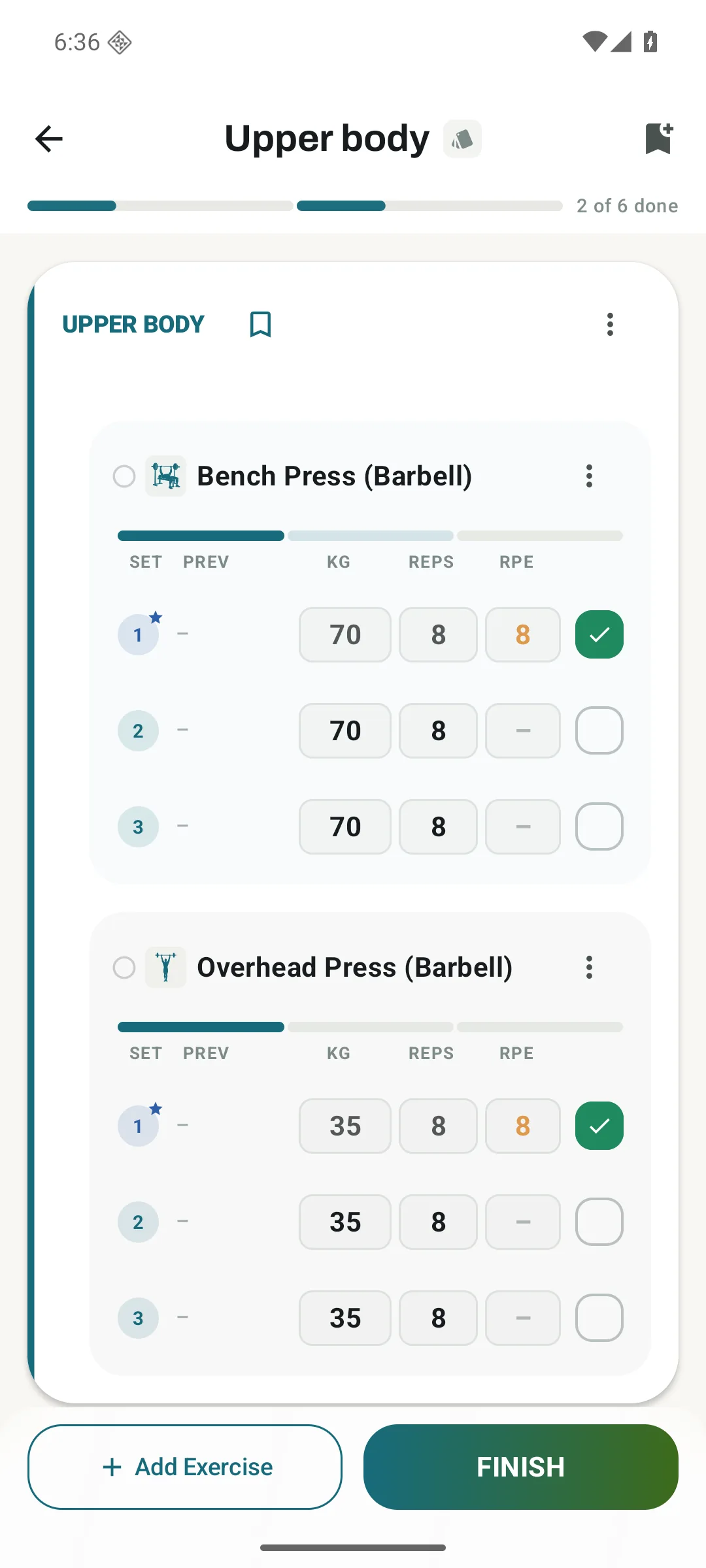
Tabular Grid
Column headings and aligned values let you read down your sets.
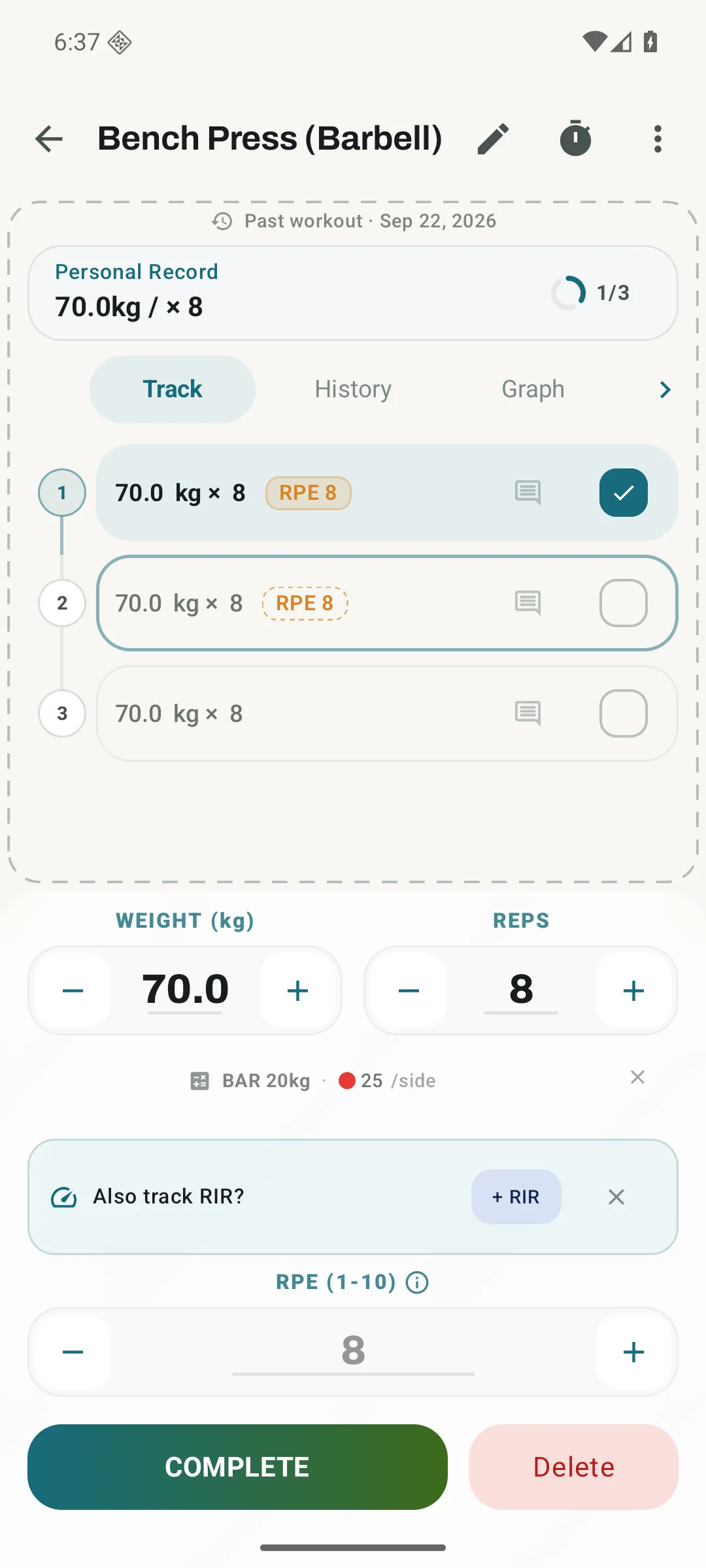
The exercise screen stays
Prefer one exercise at a time? The familiar set-entry screen still has its own place in Kinoku.
You spend more time with the set row than almost anything else in a training app. It should be comfortable to read when you are resting, and easy to change when the next set goes differently from the plan.
Kinoku 1.4.0 adds three styles for editing sets directly on Today and the full session screen. The workout underneath stays the same, so you can change how the numbers sit on the page whenever you like.
The familiar FitNotes-style exercise screen is still available too. If you like opening one exercise and doing your logging there, you can carry on that way.
Clean Inline: let the numbers lead
Clean Inline has the least visible structure. Weight and reps read like text, then become an editing surface when you tap. Choose it for sessions where you mostly repeat your last numbers and only need to change a value or two.
With less framing around each field, even a long workout stays visually quiet enough to read between sets. The completion check is separate from the values you edit. If you would rather have a more obvious target around every number, try Compact Pills.
Compact Pills: a clear place to tap
Each editable value sits in a rounded capsule. Weight, reps and optional effort fields stay on one line, but the controls are easier to distinguish from the surrounding text.
Compact Pills fits when you want the compact session overview but prefer your inputs to look like inputs. The set data and completion action are the same as Clean Inline, so switching styles does not create a different log.
Tabular Grid: read down the columns
The grid gives the row headings and alignment. Set number, previous performance, weight and reps have their own positions, with effort columns when you enable them.
Choose the grid when you want to compare several sets without mentally lining up the numbers. The previous-performance column also keeps a reference beside what you are entering. Lifters who like a table at the gym will feel at home with this arrangement.
The available fields still depend on the exercise. A timed hold does not become a weight-and-reps exercise because you changed the row style.
The FitNotes-style flow: one exercise in focus
The separate exercise screen has not been replaced. Open a movement to log its sets, check its history or look at its graph. You can move between that focused screen and the broader session view during the same workout.
If you prefer the older row behaviour throughout the session overview, turn Inline set editing off. The on/off switch is separate from your choice among the three inline styles. None of this requires moving your history or recreating a routine.
How to change it
- Open Settings → Workout.
- Turn on Inline set editing to edit values directly on the row.
- Under Set row style, choose Clean Inline, Compact Pills or Tabular Grid.
- Open Today or the full session view to use the layout you chose.
Your choice applies to both views. Today’s screen settings also has an inline-editing switch, so you can change that preference without leaving your session. Tap row to complete sets uses the whole row as a completion button, so enabling it turns inline editing off after confirmation.
Rate of perceived exertion (RPE) records how hard a set felt, while reps in reserve (RIR) records how many more reps you think you could have done. Both fields are optional. Enable the fields you use and they appear beside the other values. This guide explains the difference.
All of these logging layouts are free on Android. Pro adds things such as per-exercise rest presets and deeper analysis, but choosing a comfortable way to enter your sets is part of the core app. See Workout Logging for set types, timers and the rest of what a session can hold, or read what else changed in 1.4.0.
Track this in the app
Workout Logging
Every set, one tap. Track how hard each set felt, your rest timers, set types, and notes.
Core tracking works offline, with no mandatory account.
Related features
Every set, one tap. Track how hard each set felt, your rest timers, set types, and notes.
Unlimited routines, Smart Sync, Starter Packs, and follow-along links are free, and so are Rotation Groups that cycle through several routines for you.
Charts per exercise, PRs, your best one-rep estimate, volume trends, and date filters. Every exercise type gets a chart that fits it: Best, Total, and Avg Time for holds, Best and Total Reps for rep work, and Best and Total Distance for distance work, not just weight charts.