

What is the Calendar tab?
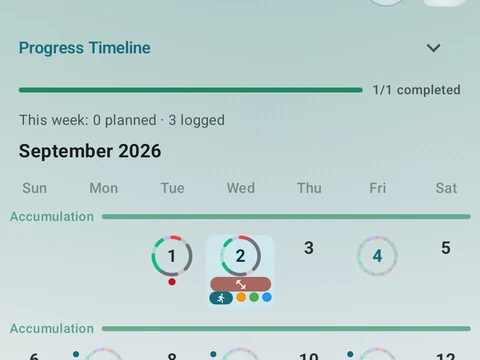
The Calendar shows past and planned workouts on one screen. Planning is free with no limit, and Pro adds five shortcuts such as dragging a plan to a new day.
The Calendar puts the workouts you logged and the ones you plan on the same screen. It sits on the bottom bar by default, and you can also open it from the side menu.
Tap an empty day to plan something. A plan can be a run, a gym session, a circuit, a swim, cross-training or a rest day, with optional targets for distance, duration and pace, plus a routine whose exercises load when you start. Planning is free, with no cap on how many plans you keep and no limit on how far ahead they go.
A long-press on a planned card opens its menu, where every plan offers Edit and Delete and a plan for a future day also offers Start today. A long-press on a session you already logged lets you pair it with a plan from that day. Kinoku may show a faded Plan this card with a suggestion for today, and nothing lands on your calendar unless you tap it. When an edit pulls a day away from your program, an Off plan chip shows up with a way back to the program.
Pro adds five shortcuts on top of free planning. You can set repeating plans, such as every Monday, Wednesday and Friday or every few weeks, and drag a plan to a new day or use Move to date. Bring to today moves a plan onto today while Repeat today copies it there, and a whole day of plans can move at once.
In the app
Training Calendar
Plan workouts on one calendar, with no limit on how many plans you keep or how far ahead you plan. Pro adds repeating schedules (weekly, custom days, or every few weeks), drag-to-move, bring-to-today, repeat-day, and day copy.