

How do I edit or delete a progress photo?
In the Progress Gallery, tap the ⋮ on a photo and pick Edit tags or Delete. A deleted photo goes to Trash, where you can restore it for 30 days.
Each photo in the Progress Gallery has a ⋮ menu in its corner with three choices:
- View opens the photo full screen.
- Edit tags opens the photo’s details. You can set its time of day, pose, condition and lighting, add your own tags, and change its date, notes and body weight.
- Delete moves the photo to Trash after you confirm. The message that follows has an Undo button, in case you tapped by mistake.
You can reach the details in two more ways. A long-press on a photo opens Edit tags too, and the full-screen view has its own edit and delete buttons as well.
A deleted photo stays in Trash for 30 days. To bring one back, open Settings, then Import & Export, then Trash, and restore it from there. After the 30 days are up, Kinoku removes the photo for good.
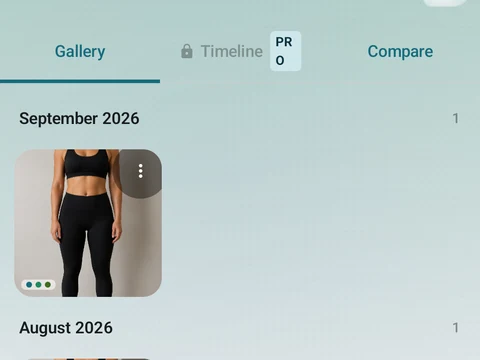
In the app
Progress Photos
Unlimited capture, pose matching, tags, and the gallery grid are free. Pro adds the Timeline and two-photo Compare tools. Kinoku does not upload photos to its servers; some files may enter Android system backup.