

How does the Progress Gallery work?
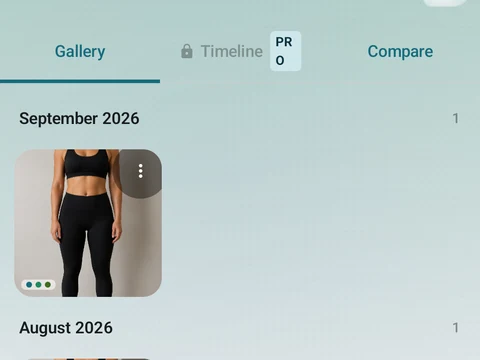
The Progress Gallery holds your progress photos with tags you can filter by. The Gallery tab is free, and the Timeline and Compare tabs are part of Pro.
The Progress Gallery keeps all your progress photos in one place. Open it from Progress Gallery in the side menu, and tap Add Photo to take a new one with the camera, pick one from your library, or bring in up to 20 at once.
Each photo can carry tags for pose, condition, time of day and lighting, plus tags of your own. The filter chips at the top use those tags, so you can show only front poses or only morning photos. Tap a photo to see it full screen.
The screen has three tabs:
- Gallery shows every photo, grouped by month.
- Timeline lays your photos out in order, so you can watch the change over time.
- Compare puts two photos together with a slider you drag across them, and shows how many days apart they were taken.
The Gallery tab, the tags, the filters and the full-screen view are free, and there is no cap on how many photos you keep. Timeline and Compare are part of Pro, but both tabs stay in view on the free plan, where Timeline carries a lock and Compare opens a short teaser.
In the app
Progress Photos
Unlimited capture, pose matching, tags, and the gallery grid are free. Pro adds the Timeline and two-photo Compare tools. Kinoku does not upload photos to its servers; some files may enter Android system backup.