

How does GPS run tracking work in Kinoku?
Tap Start a run in the side menu to record a run on a live map with pace, distance, elevation and splits. Run tracking and its voice cues are free.
Kinoku records outdoor runs with your phone’s GPS on a live map. Tap Start a run in the side menu, or the Run tab if you added it to your bottom bar, then tap Start. While you run, the screen shows your current and average pace, distance, elevation gain and loss, and your splits.
Voice cues can talk to you during the run, and each has its own switch under Settings, then Run Tracking. The main switch is Voice cues, and under it Announce splits reads out each kilometer or mile, Cadence cue speaks up when your step rate drops well below target, and Hill performance cue comes on during a long climb. Heat advisory gives one warning at the start of a very hot run. It works only when Add weather context to runs is on, a setting that fetches the weather online and stays off until you turn it on.
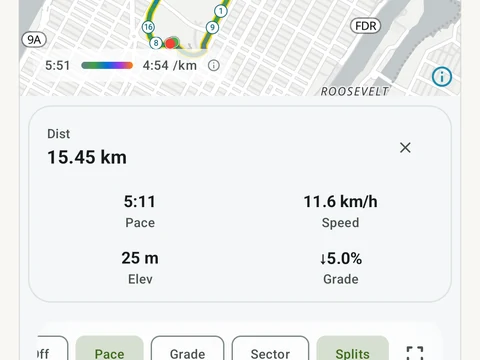
After the run, the summary map can color the route by pace, so slower stretches stand out. A button on the map opens the run in Run Studio.
Tracking, the summary, voice cues and the Overview tab of Run Analytics are free. Pro adds the replay and the run-to-run compare in Run Studio, plus the deeper Run Analytics tabs, such as pace zones and race predictions.
In the app
GPS Run Tracking
Live pace, splits, a route map, and audio cues. Your run record is not uploaded to Kinoku; map tiles load when you view maps, and weather is a clear opt-in.