

How do I scan a written routine?
Open Settings, then Import & Export, then Import from CSV, and tap Scan a plan. Kinoku reads the photo on your phone and marks anything it is unsure of.
Scan a plan sits on the Import screen, which you reach from Settings, then Import & Export, then Import from CSV. Typing scan into Search Kinoku opens it too. Point the camera at a printed or written plan, or pick a screenshot, and Kinoku reads the text on your phone.
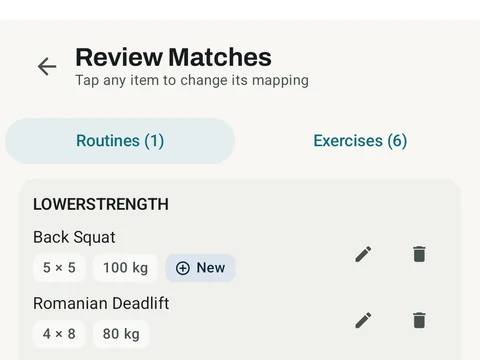
Before anything saves, a review screen shows what was read. Parts Kinoku was unsure of are marked, so you can fix a weight or a set count before the routine is created. Typed or printed plans read best, one routine per photo, with the page flat and in good light.
For messy or handwritten plans, the AI help for photo scan switch can help. On phones that support it, the switch appears on the scan screen and in Settings under Import & Export. It runs on your phone as well, though turning it on may download a model through Play services.
For now the scanner reads Latin letters only, so a plan in Japanese, Korean or Cyrillic script goes in better through Paste Workout Plan instead.
In the app
Photo Import
Scan a routine from a photo. Point at a coach's program, a screenshot, or a handwritten card, and Kinoku reads it into a routine on your phone. Check what it was not sure about, then import. Nothing is uploaded.