

Kinoku 1.5: your exercises as stars, your runs as prints
Exercise Galaxy, run prints, Guided logging, your own classes on Journeys roads, and a plan from your AI assistant. A closer look at Kinoku 1.5.0.
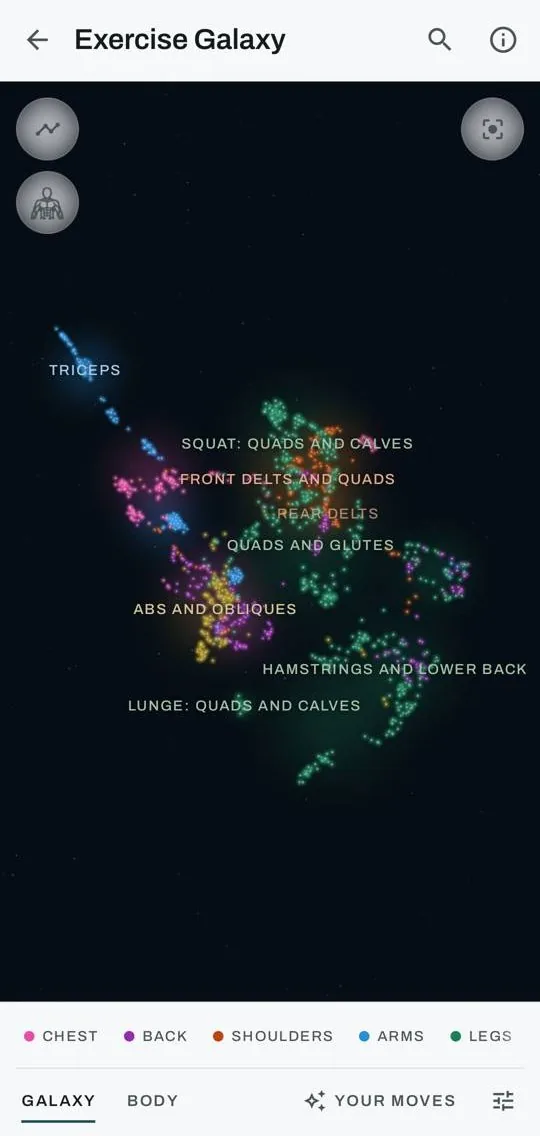
In Kinoku 1.5, every exercise in the built-in library is a star, placed near the other moves that work the same muscles. Switch to Your moves and the exercises you have trained light up, so months of sessions show as your own patch of sky that you can fly through.
Exercise Galaxy is the biggest addition in this release. Beside it you will find woodblock-style prints of your GPS runs, Guided logging for the gym, and classes you make yourself that count on a Journeys road. You can also bring a training plan in from ChatGPT, Claude or Gemini.
Every exercise as a star
Exercise Galaxy opens from the Exercise Library, from an exercise’s info sheet, or from Search. Pinch on a spot to fly toward it and keep pinching to pass through the stars, or slide the view with two fingers. A double-tap on the sky flies closer, and TalkBack users get Zoom in, Zoom out and Reset the view.
Your moves is where the galaxy becomes a record of your own training. It lights the exercises you have trained by how often, by how recently, or just the ones you have done, and runs from your watch and circuit sessions count as well. Glowing lines join your trained moves into your own constellations, one for each group of stars. Your own custom exercises show as ringed stars beside the built-in moves with the most similar muscles, as soon as each one has logged sets and its muscles filled in. A timelapse replays your training star by star, and a coverage panel counts the moves you have trained in each muscle group.
Body view turns the galaxy into a figure made of lights, with two poses and a squat you can play. On the body, Your moves lights the moves you did, or each muscle by how much you train it. From the Muscle Map, the galaxy button breaks your map into stars that fly onto the galaxy’s body, and the galaxy’s Muscle Map button flies them back.
The galaxy is also a place to plan. A routine can show as a constellation, with its moves joined in the order you do them and the rest of the sky dimmed. Train today on a star’s card adds that move to the workout open today, or begins a new one. Add to list collects moves as you browse, and from the list you can begin a workout or save a routine.
Sharing works from whatever angle you are looking at, as a feed post or a story, and as a picture or a video. The looks are Night sky, Star chart and Neon, each with a print version, and your top moves are named and linked into constellations. The video builds your galaxy month by month, while a lit routine shares as a card such as “My Push Day”, with each move numbered beside its star.
Exercise Galaxy is free, along with its sharing and video. One limit is worth knowing: the muscle figures that decide where a star sits are estimates. The galaxy on our website links studies for common gym moves and says where the gaps are.
Print a run, and hide where it starts
Any GPS run can now become a woodblock-style poster, with its route, its climbs and the water and buildings around it, under a day or night sky with the run’s number in the corner. Print sits next to Share Run and in the run’s share screen. You can share, copy or save the print as a poster, a 4:5 post or a story. The first print of a run downloads its map and keeps it on your phone after that, and a wide route asks before it downloads its buildings.
Route images you share can now leave out where you start and finish. Hide route start and finish lives in Settings under Import & Export, with a choice of 200 m, 500 m or 1 km, and it is off by default. It covers run share cards and run prints, and on Pro it also covers the Route Heatmap image and Run Studio videos. Your saved runs and the maps inside the app stay whole. The map around a route can still show the area, so a start point becomes hard to find, though not impossible.
Opening a run share also no longer sends your route’s exact first point to your phone’s place-name service, which is Google’s on most phones. Among the share looks, only Passport asks for a place name, and only when you pick it, with a point rounded to about 1 km. Run prints and hiding route ends are free.
Guided logging picks the next set
Guided logging is a new switch in Workout settings, and it is off by default. With it on, Kinoku picks the next set for you after each one you finish. A panel at the bottom of Today and the full session view holds − and + buttons and a Complete button for that set. In a superset the lifts take turns, and the rest timer waits until the round ends. Each set keeps to one line when it fits, and a finished set fills in with color, as it does on the exercise screen.
A second change reaches anyone who ticks sets in Today’s list. A tick now saves the faded numbers the row shows, such as last time’s weight and reps and the suggested rate of perceived exertion (RPE), a score for how hard the set felt. If you would rather save only what you type, turn off Tick saves faded numbers in Workout settings. Both switches appear under Inline set editing, and both are free.
Classes of your own, counted on your road
New class in the Log a class sheet makes a class of your own, with a name, a class type, an icon and color, its usual length and the muscles it works. Manage classes edits any class, archives the ones you made and hides built-in classes you never take. When you log a class, you can add the studio and the instructor, and the session’s menu lets you change both later. On the calendar and the Today card, a class shows its own icon and color.
Logged classes now move you along a Journeys road, about as far as a walk or run of the same length and effort would. Their distance shows on its own line, and saving a class tells you how far it counts. A new road counts classes unless you switch them off on the Start sheet. On a road you started earlier, classes count only after you turn on Classes under What counts, and the ones you logged before that stay out.
Classes also go to Health Connect as their own activity now, such as yoga, stationary biking or boxing, rather than as strength training. Classes logged before this update keep the old type. Making classes and counting them on a road are both free.
Bring a plan from your AI assistant
The Import screen has a new Copy plan prompt button. Paste the prompt into ChatGPT, Claude or Gemini, and the assistant asks you a few questions, then writes routines and dated calendar days that Kinoku can import. You can paste its reply into Smart Import, which now reads the whole reply and not only the code block inside it. You can also share the reply from the assistant’s app straight into Kinoku, where a plan opens in its preview.
The old prompt button is now called Copy log prompt. Kinoku has no chat of its own and does not connect to your assistant, so the plan travels by copy and paste or the share sheet. An assistant can still get an exercise name or a number wrong, which is why the preview shows every routine before anything is saved. The prompt, the import and the plans it makes are free, and the plan prompt page shows the prompt in full.
Health Connect brings in your last 30 days
Connecting Health Connect now brings in your last 30 days of sleep, steps, heart and body data, or up to a year where Health Connect allows your full history. Before this release, only today’s data came in. With Auto-sync on, the data refreshes when you open Kinoku, up to once an hour. The 6-hour background sync uses Health Connect’s background permission, and the Health Connect screen asks for it.
That screen is rebuilt, too. It shows whether Kinoku is connected, when it last synced, and one list of what Kinoku reads with today’s values, along with a link to the Health Dashboard. Data types you allowed in the Health Connect app are now read without a second switch in Kinoku. Manage permissions now works on Android 14 and later, where the button was greyed out.
The Health Dashboard now leads with a trend chart you can switch between metrics, and pulling down syncs it. Steps from a phone and a watch no longer count twice there, and its step count matches the Steps screen. On Free, the dashboard shows the last 7 days, and its longer ranges are part of Pro.
Finding things by the names you see
Search is now one tap from Today, with a magnifier next to the gear at the top. It finds settings by the words printed on them, then opens the screen with that row in view and glowing. When a search finds nothing, Tell us what you were looking for opens an email draft with your search in it, and nothing goes out unless you send it.
Menu rows now carry the name of the screen they open. Charts & Trends is now Stats, Step tracker is Steps, Skills is Skill Board, and Appearance & Layout in Settings is Customize Kinoku. The Body tab is now Muscles, short for Muscle Map, and Search still finds the old names. Twelve new help answers cover questions such as what each ⋮ menu holds and how to change what an exercise tracks.
Smaller things you will notice
With run weather on, the run screen shows the temperature and sky at the top, before Start and during the run, and a tap opens feels-like, wind and air quality. Run weather no longer goes missing when your phone had no recent location as the run screen opened, and air quality now shows when you turn it on.
Reach a stop on a Journeys road, and the next time you open the road, the covered picture of the newest stop you reached lifts off to show its print. The road’s page shows how far along you are, like “66 of 492 km”, with a thin bar, and the next stop gets its own row.
In the gym, last time’s numbers now line up by set type, so a warmup shows last time’s warmup and not your working weight. Routine Changes no longer turns working sets into warmups on a routine with a warmup scheme. Today scrolls more smoothly with a long workout open, and Delete Workout now says the workout goes to Trash, where you can restore it for 30 days.
A new card on the recap and the run summary marks your 10th, 25th and 50th workout, then every 100th up to 1,000, and every 250th after that. The rating prompt now waits until you have used Kinoku for two weeks and logged 10 workouts. On phones whose graphics chip is too old for maps, the map screens no longer crash, and a plain panel takes the map’s place.
If you turned on Help improve Kinoku, its reports now also name the screens you open, the screen open during a crash and the journey you start. The cycle, health dashboard and progress photo screens are left out, and a skill start is counted without the skill’s name.
The full changelog lists everything else in 1.5.0. Kinoku is still Android-only, and your training history stays on your phone rather than syncing through a Kinoku account, so moving to a new phone means taking a backup with you.
Inside Kinoku
The app surfaces behind this story
 Open full-size image ↗
Every exercise as a star
Exercise Galaxy places each built-in move near the moves that work the same muscles, colored by muscle group. Galaxy, Body and Your moves sit along the bottom.
Related features
1,300+ built-in exercises with muscle data and unlimited custom moves are free. Pro adds custom form photos and assisted sorting.
Frequency and training-volume maps are free. Pro adds recovery estimates, readiness context, and exercise picks.
Live pace, splits, a route map, and audio cues. Your run record is not uploaded to Kinoku; map tiles load when you view maps, and weather is a clear opt-in.
15 selectable looks plus Sticker export and 22 captions. After a session, Kinoku surfaces up to 6 looks that fit what happened.
Every set, one tap. Track how hard each set felt, your rest timers, set types, and notes.
Walk Hadrian's Wall, the Tōkaidō or the Odyssey with your everyday distance. Reach a stop and uncover its picture.
Kinoku reads and writes Android Health Connect data without passing it to a cloud. Period flow import is a Pro feature and read-only. Kinoku never writes cycle data back to Health Connect.
Search like Spotlight by typing a metric, exercise, routine, or session. You can also run commands like "switch to imperial" or "apply Cyber theme".
Try Kinoku
Core tracking works offline. No mandatory account. No Kinoku-hosted training-history cloud.
Get on Google Play →